Live Face Swap
Live face swap for Meet, Zoom and Discord: become anyone you want, in real time, while you talk.
Where it works
What is a live face swap?
A live face swap is a real-time face changer: it replaces your face with any face you choose, live, while you talk. With Facecam you can become anyone you want in Meet, Zoom and Discord. Upload any photo or pick a built-in face.
Before and after


More examples
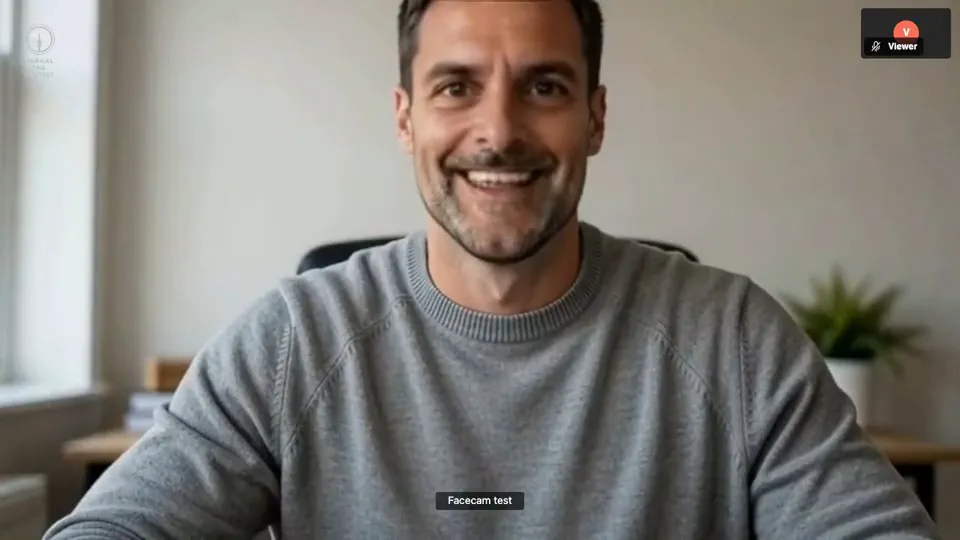
The other side of a real test call: one face, then another, without leaving the call.
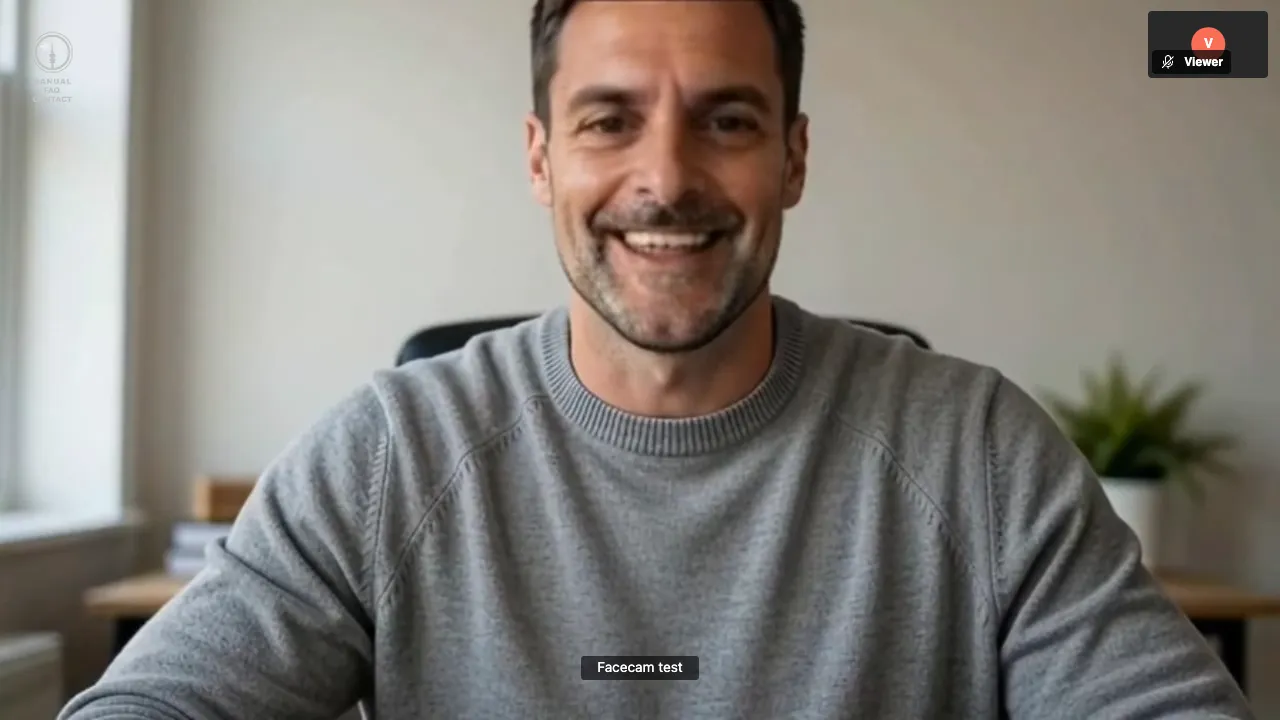
What the other person sees: a plain browser, nothing installed on their side.
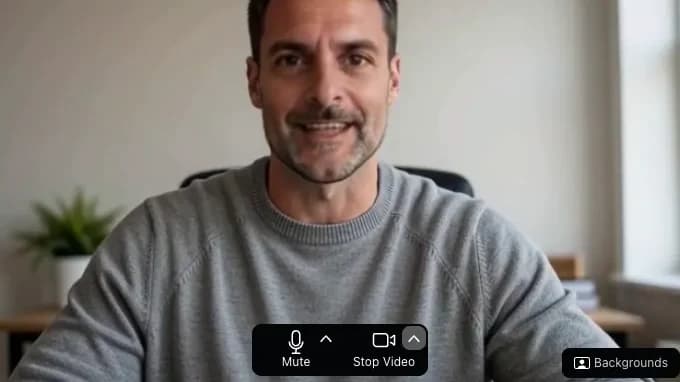
Zoom in Chrome, on the join screen, before entering the meeting.
How to use Live Face Swap
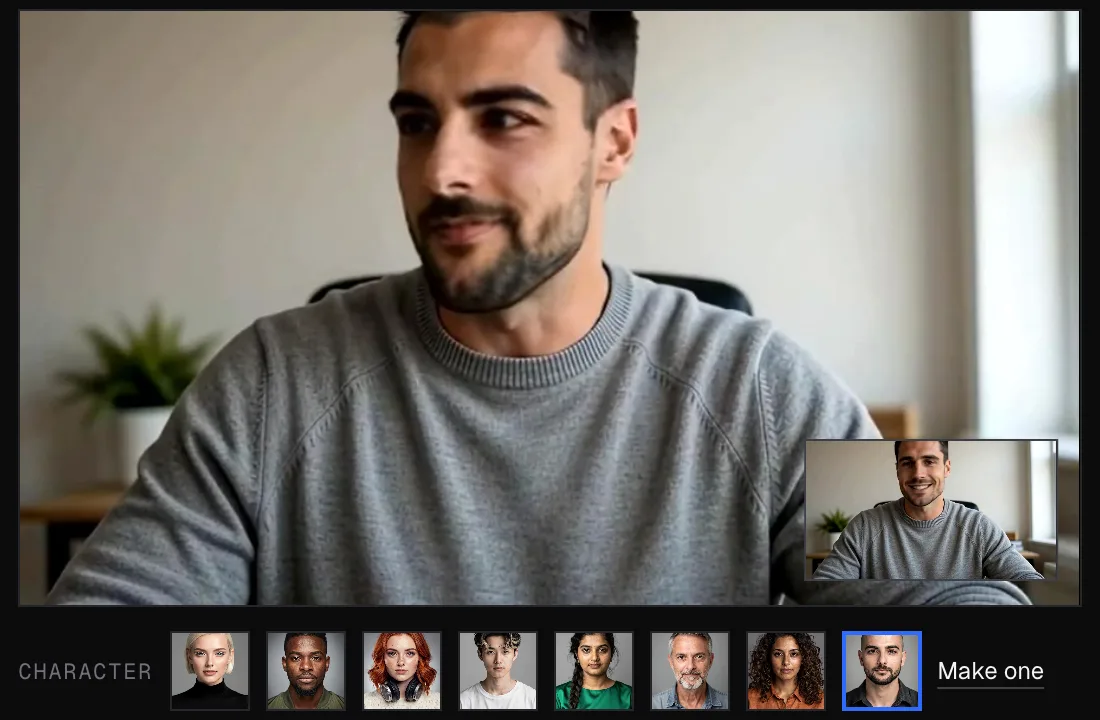
01
Try it here
Click Start camera, pick a face and click Start swap. The new face fills the frame and your real camera moves to the corner.
02
Add Facecam to Chrome
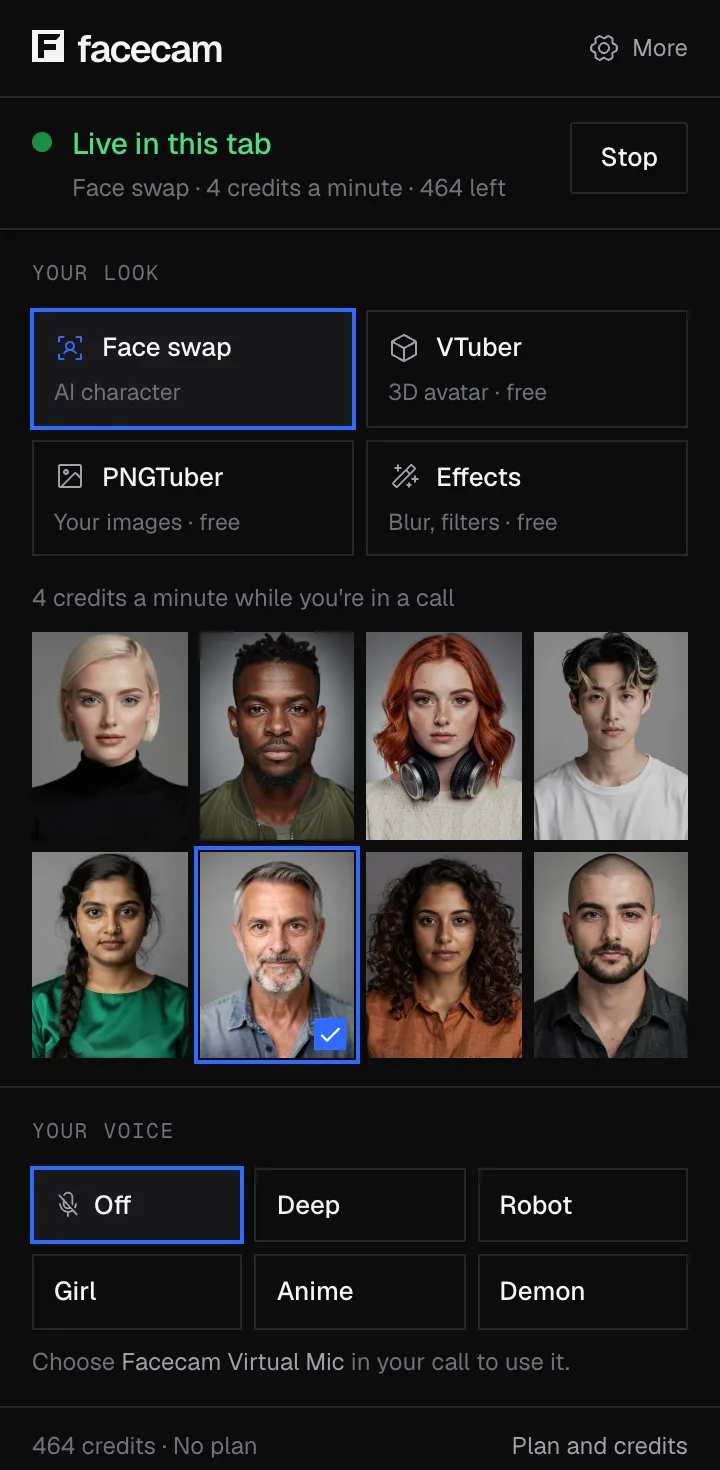
Install the extension, sign in from the toolbar and click a face, or upload a photo of the face you want.
03
Pick the camera in your call
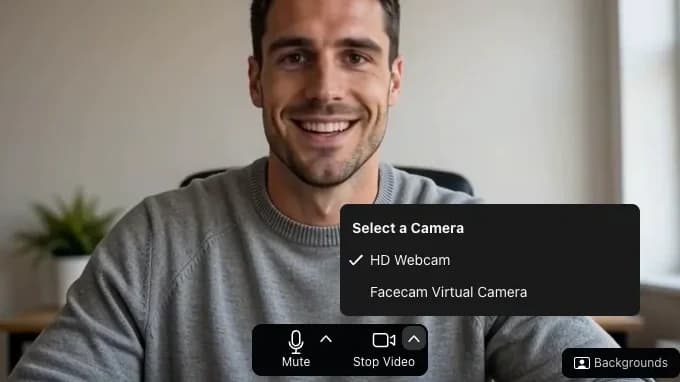
In Meet, Zoom, Teams or Discord in Chrome, open the camera menu and choose “Facecam Virtual Camera”.
What you can do with Live Face Swap
Face swap on Zoom
Face swap in Google Meet
Meet runs in Chrome, so the Facecam camera sits in its camera menu, in the green room or mid-call.
Face swap on Discord
Microsoft Teams on the web
Teams in Chrome lists the Facecam camera like any other webcam, under Devices or the camera menu before you join.
Stream as someone else

Live Face Swap features
Any face from one photo
Upload a clear, front-facing photo of the face you want, or pick one of the eight built-in faces.
A camera for your calls
Shows up as “Facecam Virtual Camera” in any site that uses your camera in Chrome.
No gaming PC
The swap runs on our graphics cards. Your laptop only needs Chrome, a webcam and a steady connection.
Switch faces mid-call
Click another face in the popup. The call keeps the same camera, so nobody sees a reconnect.
720p at 30 frames a second
The camera sends 1280×720 at 30 frames a second, steady. In our test, about 17 of those frames each second were newly swapped.
Nothing recorded
Your video is swapped and sent straight back. Facecam saves no video or pictures of your call.
Live face swap options compared
| Facecam | Desktop apps | Other online services | |
|---|---|---|---|
| Examples | This page and the Chrome extension | Deep-Live-Cam, DeepFaceLive, Swapface | LiveSwap, Livesync |
| Install | One Chrome extension | An app, or Python and model files | None, but OBS to reach a call |
| Graphics card | Not needed | Usually a strong one | Not needed |
| Getting it into a call | Pick the camera in the call | Through OBS Virtual Camera | Through OBS Virtual Camera |
| Zoom, Teams or Discord desktop app | No, calls in Chrome only | Yes, through OBS | Yes, through OBS |
| Free to try | No, Premium and Pro only | Deep-Live-Cam and DeepFaceLive are free | Livesync gives 10 free minutes |
How fast it is, measured
In our test from Texas, a frame took 217 ms from camera to screen (median, Chrome), and 24 ms of that was the GPU swapping the face. Most of the rest is the trip to the GPU and back, so it depends on where you are. See the full latency benchmark
More about Live Face Swap
Upload any photo or pick a built-in face.
Live Face Swap is a real-time face changer: it replaces your face with any face you choose, live, on this page or as a camera in your video calls.
Live Face Swap: what you need and limits
| How it works | Live, on any laptop. Needs a steady internet connection. |
|---|---|
| You get | Camera in Chrome calls |
| You need | A computer (for calls: Chrome and the Facecam extension), a webcam |
| Phones and tablets | Try it on the page; calls need a computer |
| Computer needed | For calls: any laptop or desktop with Chrome and a webcam. No gaming PC. |
| On this page | Works in phone and computer browsers. The camera preview is free. Swapping needs a Premium or Pro plan. It pauses when you switch tabs or lock your phone. |
| Picture | 1280×720 at 30 frames a second. About 17 new swapped frames a second in our 60-second test (13 to 20). |
| Start-up | 22 to 26 seconds the first time you pick the camera, about 5 seconds if you used it a minute before. Until then the call sees your normal webcam. |
| What changes | Your face: eyes, nose, mouth, skin and expression. Your hair, clothes and room stay as they are. |
| Recording | None. Your video is swapped and sent straight back. Nothing is saved. |
| AI label | None on the video. Say the face is AI-changed wherever the law requires it. |
| Uploaded faces | Saved on this computer only, not on your account. |
How real-time face swap works
Your webcam video goes to our servers, where an AI model finds your face in each frame, swaps in the face you picked and keeps your expression, mouth and head movement. The new frames come straight back to Chrome, where the Facecam camera passes them to your call.
Free face swap apps you download usually need a powerful gaming PC and a tricky setup. Here a laptop is enough, but the connection matters: a steady upload speed keeps the swap smooth.
Tips for a face that looks real
- Pick a face with hair like yours. Only the face is swapped, so your own hair stays.
- Face the camera in even light. Strong light from one side makes the swap flicker.
- Keep your hands away from your face. A hand or a mug in front of it can show your real face for a moment.
- Bearded faces suit bearded people best, and the other way round.
- Uploading a face? Use a sharp, front-facing photo with nothing covering it.
Which faces you can use
Upload anyone's photo, pick a built-in face, or use one you made with the Character Generator, on this page or in the Chrome extension. Uploaded faces are saved in your browser only, and you can switch faces during a call without leaving it.
Live Face Swap FAQ
Can I face swap live on a video call?
Yes, if the call runs in Chrome. Pick “Facecam Virtual Camera” as your camera in Google Meet, Zoom on the web, Teams on the web or discord.com.
Does it work in the Zoom or Discord desktop app?
No. Desktop apps can't see a camera that lives inside Chrome. Join the same call from the browser instead.
Is there a free live face swap?
No. Live face swap is part of Premium and Pro. The camera preview on this page is free, and so are Facecam's voice changers, VTuber and PNGTuber makers and webcam effects.
Can I try it without installing anything?
Yes. With Premium or Pro, sign in and press Start swap on this page. You only need the extension to use the swap in a call.
Can I use any face, like a photo of a friend?
Yes. Upload a clear, front-facing photo in the extension or on this page and it becomes a face you can wear. Uploaded faces stay on your computer.
Is there a delay?
Once it's running, the new face moves with you in real time and the call sees it like any webcam. Starting takes a moment: 22 to 26 seconds the first time, about 5 seconds if you used it a minute before. Until then your call shows your normal camera.
Will people in the call know?
Facecam draws nothing on your video. They see the face you picked, moving and talking as you do.
Is my video recorded?
No. Your video is swapped and sent straight back. Nothing is saved. We keep a short record of each session (start, end, time used and the face used) for up to 12 months to enforce our rules.
Can it swap more than one person?
Yes. Turn on “Swap every face in frame” in the popup. By default only one face is swapped.
Does it work on a phone?
On this page, yes: it works in Safari and Chrome on phones, with your front camera. Using it in Meet, Zoom or Discord calls needs the Chrome extension on a computer.
Can I use it in OBS or record it?
Facecam doesn't record your calls. OBS can't pick the Facecam camera, because it only shows up inside Chrome. Instead, add a Window Capture in OBS for the Chrome window showing the swap, or use your call app's own recording.
Is live face swapping legal?
Changing your face on camera for fun, privacy or a stream is legal in most places. Using it to defraud people or to make sexual images of someone is against our rules and illegal in many countries.
More tools


Related

Try Live Face Swap now
- Cancel any time
- Works in Meet, Zoom and Discord
- No gaming PC needed
Updated